
Local recognition
With a local model, your recordings are recognised on your computer and no audio leaves it. Open Speech models in the sidebar, choose This computer, and download a model. Once it is downloaded, you can also switch to it from the speech model name on the home page or under the page title.
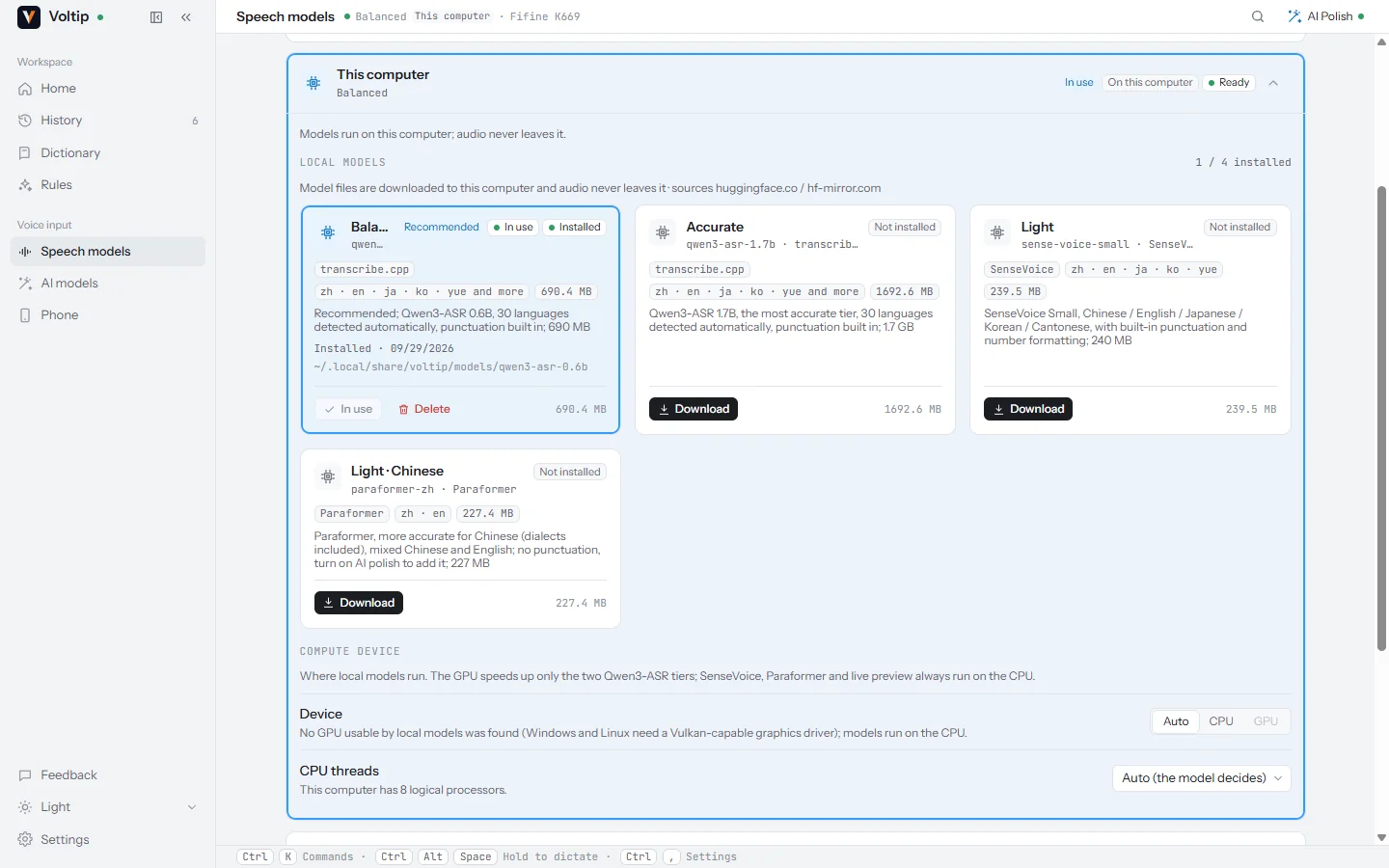
The models
| Model | Size | Languages | Runs on | Notes |
|---|---|---|---|---|
| Qwen3-ASR 0.6B | 690 MB | 30 languages, detected automatically | GPU or CPU | Recommended. Writes the punctuation itself |
| Qwen3-ASR 1.7B | 1.7 GB | 30 languages, detected automatically | GPU or CPU | The most accurate, and slower. The same model the built-in service uses |
| SenseVoice Small | 240 MB | Chinese, English, Japanese, Korean, Cantonese | CPU | The smallest download. Writes punctuation and normalises numbers |
| Paraformer | 227 MB | Chinese, including dialects, mixed with English | CPU | More accurate on Chinese. Writes no punctuation; AI polish can add it |
| Live transcription | 169 MB | Chinese and English | CPU | Shows the words while you speak (Local model preview, see Live text while you speak). The final text still comes from the model above; not needed with the built-in service |
The Language setting on the Speech models page's Recognition tab is passed to the models and services that accept one. Qwen3-ASR always detects the language itself.
When Silence trimming is on, a 1.8 MB silence detection model is downloaded with the first local model.
Longer recordings
The longer the recording a local model recognises in one go, the more words it misses. In our tests with Chinese and English speech from the FLEURS test set, SenseVoice Small's Chinese character error rate was 8.9% at 30 seconds and 16.7% at 60 seconds; Qwen3-ASR 0.6B's English word error rate rose from 4.8% at 30 seconds to 10.7% at 60 seconds and 20.4% at 90 seconds, and Paraformer and Qwen3-ASR 1.7B also got clearly worse in English at 60 seconds. With every local model, recordings longer than 30 seconds are therefore split at pauses, recognised part by part and joined into one text. This happens automatically; recordings longer than 2 minutes are still recognised in parts while you record.
After you cancel a dictation, the next one does not wait for the cancelled recognition to finish: with SenseVoice or Paraformer, the cancelled recognition finishes in the background while the next dictation runs on a second copy of the model, or on the language or model you switched to; with Qwen3-ASR, it waits at most for the part being recognised. When a local model fails to recognise a recording, Voltip loads it afresh for the next one.
Downloading
- Release packages download from the project's own mirror first, then from Hugging Face, then from hf-mirror.com. When a source is slow or unreachable, Voltip switches to the next one by itself.
- The live transcription model is no longer on Hugging Face. After the project's mirror, it comes as one package from the sherpa-onnx project's releases on GitHub, and Voltip takes the model's files out of the package. A copy you already downloaded stays as it is.
- An interrupted download resumes where it stopped.
- Every file is checked against a SHA-256 hash before it is used.
- Before a download starts, Voltip checks that there is enough free disk space.
By default the models are stored in the models folder of Voltip's data folder (where that is); they can live in another folder too, see Where the models are saved. Deleting a model on the Speech models page removes its files.
Where the models are saved
When the system drive runs short of space, keep the models on another drive: under This computer, in Location, choose Change… and pick a folder. The downloaded models move along.
- Within one drive the move is instant. To another drive, Voltip first copies and checks every file, then switches to the new folder, and only then deletes the files in the old one. The page shows the progress, and Cancel move stops the copy.
- A move that does not finish (cancelled, not enough space, or another error) leaves the models where they were, ready to use.
- While the models move, they cannot be downloaded or deleted; while a model downloads, the location cannot change until the download finishes or you cancel it.
- An old file that is still in use and cannot be deleted yet is deleted the next time Voltip starts.
- When the chosen folder already holds a complete copy of a model, for example after reinstalling the system and choosing the old folder again, Voltip uses it as it is instead of copying.
Restore default moves the models back to the data folder. Models downloaded later are saved in the current location.
Downloading by hand
When the app cannot download a model, for example on a network where only another device can reach the sources, download it by hand:
- On the model's card, choose Download by hand to see the model's folder and the files it needs.
- Open each file's address (Hugging Face or hf-mirror.com) in a browser, or copy it to download the file on another device, and save the file into the folder the card shows, under the same name. Open folder opens that folder, and Copy path copies its location.
- Once every file is there, choose Check and import. Voltip checks each file's size and SHA-256. When they are all right, the model is ready to use; otherwise the card lists the files that are missing or wrong.
The live transcription model's card lists one package instead of its files: download it and put it into the folder as it is, without unpacking it. Check and import takes the model's files out of it and then deletes the package.
When the app downloads a model itself, it checks the files already in the folder first and downloads again any that are wrong.
CPU or GPU
Under This computer, Run on offers:
- Auto (default): the graphics card when this computer has one Voltip can use, otherwise the processor.
- CPU: always the processor. CPU threads sets how many it uses.
- GPU: the graphics card, and which one if there are several.
Only the two Qwen3-ASR models use the graphics card: through Vulkan on Windows and Linux, which needs a graphics driver with Vulkan support, and through Metal on a Mac. SenseVoice, Paraformer and the live transcription model always run on the processor. If the graphics card cannot be used, Voltip falls back to the processor and dictation continues.
If the graphics card fails during recognition, Voltip recognises the recording again on the processor, and Recognised on in the history details says so. After a second failure within 10 minutes, the processor is used until Voltip restarts.
The first run on a graphics card takes longer, because the driver prepares the model for it once: about 13 seconds on an NVIDIA L40S and about two minutes on a Tesla T4 in our measurements. Later runs start quickly.
Measurements
Qwen3-ASR 0.6B recognising 16 seconds of Chinese speech, after the first run:
| Computer | Device | Loading | Recognition |
|---|---|---|---|
| Linux, NVIDIA L40S | GPU (Vulkan) | 0.58 s | 0.16 s |
| Linux, same computer | CPU, 8 threads | — | 2.87 s |
| Windows, NVIDIA Tesla T4 | GPU (Vulkan) | 1.6 s | 0.28 s |
SenseVoice Small (int8) recognised the same recording in 0.20 to 0.34 seconds on a 32-core server processor using 4 threads.
Voltip loads the selected model in the background when it starts and after each settings change, so the first dictation does not wait for it.
Processor requirement
On x86 computers, Qwen3-ASR needs a processor with AVX2: Intel processors from 2013 (Haswell) on, and AMD processors from 2015 on. On an older processor, Voltip explains why the model cannot be loaded; use SenseVoice, Paraformer or a cloud service instead. Apple silicon Macs run the models natively.
When a local model fails
The fallback list on the Speech models page can include downloaded local models (see Also switch when a service fails). While the selected model is a local model:
- With When a model's quota runs out and Also switch when a service fails on, a recording whose graphics card, memory or model fails, and fails again on the processor, is recognised by the next local model in the list.
- The online providers in the list are not used: a failure of local recognition never uploads the recording. With only online providers in the list, the dictation reports the failure as before.
- Local models have no quota, so with only When a model's quota runs out on, nothing switches.
While the selected model is an online provider, a local model in the list can also take over when the quota runs out or the service fails.
Chinese script
Some models write Traditional characters for Chinese speech. Under Chinese script on the Recognition tab, choose Simplified (default), Traditional or As recognised. The conversion happens right after recognition, before the dictionary corrections.
From the command line
The same models work without the app's window, for scripts and servers:
voltip-desktop --list-models
voltip-desktop --download-model qwen3-asr-0.6b
voltip-desktop --transcribe-file sample.wav --json
voltip-desktop --list-compute
See Command line for every option.