
Provider setup
This page shows, for each provider Voltip supports, what to activate, where to get the credentials and where to enter them. For the steps every provider shares, see Setting up a provider; for the built-in service, see The built-in service; for local models, see Local recognition.
When you open a provider's settings on the Speech models or AI models page, How to set up gives short steps and direct links: the page where the service is activated, the app is created or credit is added, Get a key, and Full guide, which opens the provider's section on this page. The page addresses below were checked against each provider's official documentation in November 2026; the provider's own website is the reference for console names, free quotas and prices.
OpenAI {#openai}
Speech recognition and AI polish, with one key for both.
- Sign in to the OpenAI Platform and add credit under Billing. The API is billed by use.
- Create a key on the API keys page.
- Enter the key in the OpenAI settings.
- Suggested models:
gpt-transcribe,gpt-4o-mini-transcribeandwhisper-1for recognition,gpt-6-lunaandgpt-6-solfor polish. OpenAI shuts downwhisper-1,gpt-4o-transcribeandgpt-4o-mini-transcribeon 26 February 2027 and recommendsgpt-transcribe. - Official documentation: Quickstart, Speech to text.
Groq {#groq}
Speech recognition and AI polish, with one key for both. Groq has a free plan, with rate limits on requests.
- Sign in to the GroqCloud console.
- Create a key on the API Keys page.
- Enter the key in the Groq settings.
- Suggested models:
whisper-large-v3-turboandwhisper-large-v3for recognition,qwen/qwen3.8-27b,openai/gpt-oss-120bandopenai/gpt-oss-20bfor polish. - Official documentation: Speech to text, Rate limits.
Google AI Studio {#google}
AI polish only, with Gemini models.
- Sign in to Google AI Studio with a Google account and accept the terms of service.
- Copy or create a key on the API Keys page.
- Enter the key in the Google AI Studio settings on the AI models page.
The model list suggests Gemini models with a free tier, gemini-3.5-flash-lite first: polish handles short texts, and Flash-Lite answers faster. Once the key is saved, the list also shows every text model the key can use, so you choose from the list instead of typing a name.
A Google model is sometimes unavailable for a while because of high demand (HTTP 503); the overlay then says Not polished · service busy. Try again later, or pick another model.
On the free tier, Google may use what you send to improve its products; a key from a Google Cloud project with billing turned on is not used that way. See Privacy.
- Official documentation: Gemini API keys, OpenAI compatibility.
SiliconFlow {#siliconflow}
Speech recognition and AI polish, with one key for both.
- Sign in to SiliconFlow and complete identity verification on the verification page (实名认证): top-ups and all the free models need it.
- Choose New API key on the API keys page.
- Enter the key in the SiliconFlow settings.
- Suggested models:
FunAudioLLM/SenseVoiceSmallandTeleAI/TeleSpeechASRfor recognition,Qwen/Qwen3-8Banddeepseek-ai/DeepSeek-V3for polish. - Official documentation: Quickstart, Identity verification, Speech to text API.
Alibaba Cloud Model Studio {#aliyun}
Speech recognition and AI polish, with one API key for both.
- With a verified Alibaba Cloud account, open the Model Studio console in the Beijing region (China North 2) and accept the service agreement: Model Studio is activated and each model gets a free quota.
- Speech recognition models need access enabled in a Model Studio workspace before they can be called and use their free quota.
- Choose Create API key on the API Key page. Each region has its own API keys and addresses, which do not work in another region.
- Enter the API key in the Model Studio settings.
Model Studio's speech models use Model Studio's own interfaces, and Voltip picks the right one from the model's name:
- Realtime models (the default qwen-audio-3.1-asr-flash-streaming, and qwen-audio-3.1-asr-flash-message, fun-asr-realtime, paraformer-realtime-v2 and others): the recording goes to Model Studio while you speak and is recognised as it arrives. The overlay shows the words, release only waits for the last sentence, and the whole recording is not recognised a second time. The overlay's tag reads Preview · Model Studio. With Provider's live text off under Live preview, the recording is still sent and recognised while you speak, with the same result and wait, and the overlay only shows no words. With the output mode All at once, takes run as While you speak, and the text is still inserted once on release.
- Whole-recording models (qwen-audio-3.1-asr-flash, qwen3-asr-flash, fun-asr-flash): the whole recording is recognised after you release the shortcut, up to about 4 minutes per recording.
- Models with filetrans in their names, fun-asr, paraformer-v2 and sensevoice-v1 only transcribe recorded files in the background and cannot be used for dictation; qwen3-asr-flash-realtime is not supported yet. The model list leaves them out; with one of them typed in and selected, dictation says to pick another model.
With the endpoint left empty, Voltip uses the public address https://dashscope.aliyuncs.com/compatible-mode/v1. For your workspace's own address, enter it under Endpoint, for example https://<workspace ID>.cn-beijing.maas.aliyuncs.com/compatible-mode/v1; the Singapore region uses dashscope-intl.aliyuncs.com. A Model Studio address entered for a Custom endpoint follows the same rules.
The correct spellings in your dictionary go to the qwen-audio models as hot words, and to fun-asr-realtime and fun-asr-flash as context; Model Studio's other speech models take no glossary. For AI polish with Model Studio's Qwen or DeepSeek models, Voltip turns off their thinking mode, which is on by default and makes polish slow.
Model Studio gives newly activated models a free quota, one for each model; only the models of the Beijing region have one. View quota in the Model Studio settings opens the console's free quota page, where you see each model's remaining quota and usage: Model Studio has no API for reading the quota with an API key, so Voltip does not show it. To use the free quota only, turn on Free Quota Only (免费额度用完即停 in the Chinese console) on that page. Once the quota is used up, dictation says that the model's quota is used up, or Voltip moves on to another model: see When a model's quota runs out.
- Official documentation: Get an API key, Free quota for new users.
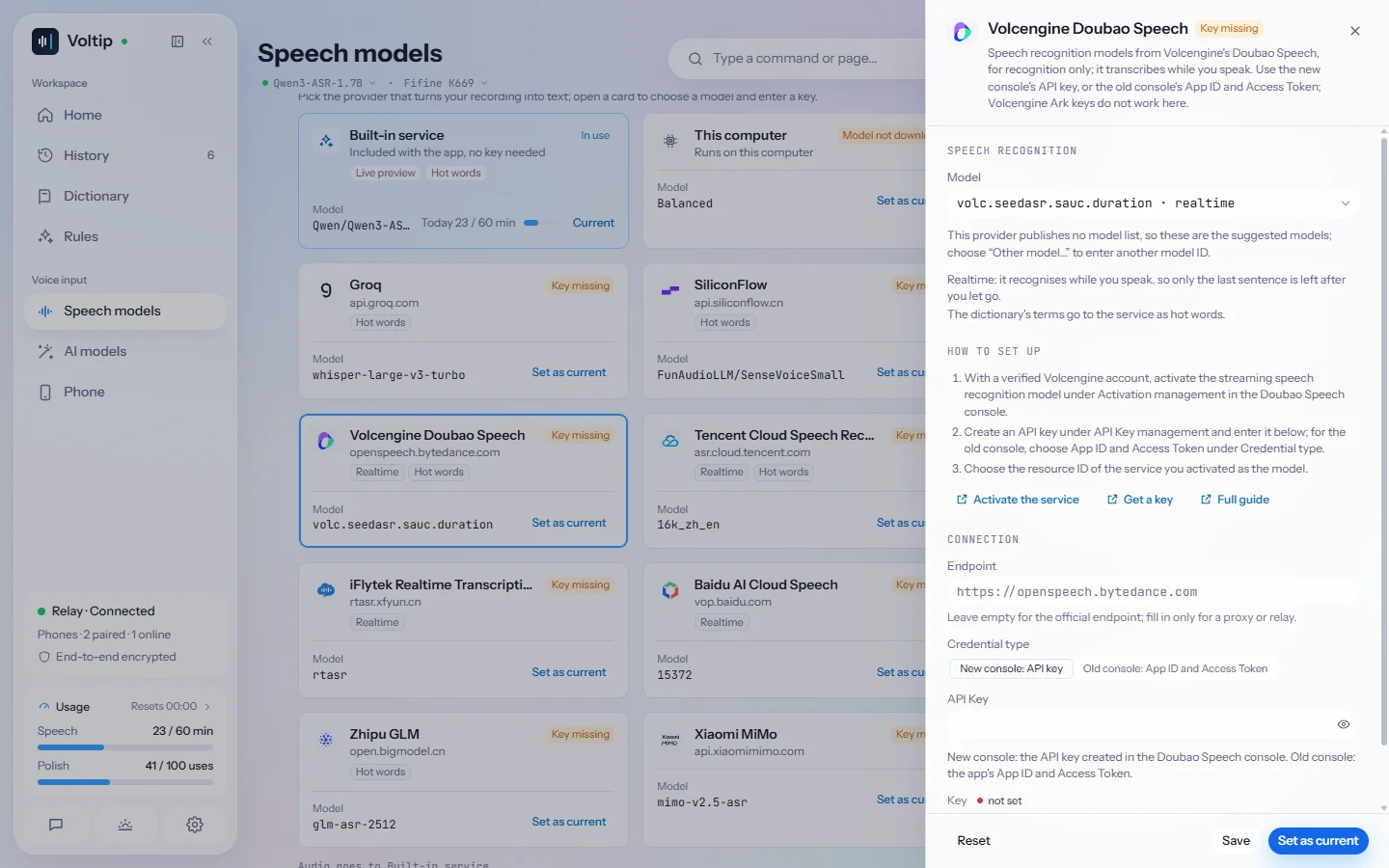
Volcengine Doubao Speech {#volcengine-speech}
Speech recognition only, while you speak. Volcengine Ark keys do not work here.
- Create a Volcengine account and complete identity verification.
- In the new Doubao Speech console, activate the streaming speech recognition model under Activation management (开通管理). A new user can activate every model for the default project at once and receives a free trial package.
- Choose Create API Key under API Key management.
- Enter the API key in the Volcengine Doubao Speech settings, and choose the resource ID of the service you activated as the model.
- The model is the service's resource ID:
volc.seedasr.sauc.durationis the hourly plan of the Doubao streaming speech recognition model 2.0 (the default),volc.bigasr.sauc.durationthe hourly plan of 1.0,volc.seedasr.sauc.concurrentthe concurrency plan of 2.0. - With the old console, create an app under App management and note its App ID and Access Token; in the settings, choose Old console: App ID and Access Token under Credential type and enter those two. Volcengine is retiring the old console and recommends the new one.
- Official documentation: New console quick start, Using an API key, Streaming speech recognition API.
Tencent Cloud Speech Recognition {#tencent}
Speech recognition only, while you speak. It needs three credentials, the AppId, SecretId and SecretKey; Tencent Hunyuan (TokenHub) keys do not work here.
- Open the speech recognition console, complete identity and face verification, accept the user agreement and choose Activate (立即开通). Each service then has a free quota, shown under Resource packages.
- Choose Create key on the API key management page (API 密钥管理) and copy the SecretId and SecretKey.
- Copy the APPID from Account center (账号中心).
- Enter all three in the Tencent Cloud Speech Recognition settings.
- The model is the engine type:
16k_zh_encovers Chinese, English, Cantonese and many dialects,16k_zhis general Chinese,Hy-ASR-3.0-previewcovers Chinese, English and 20 dialects and takes at most 5 minutes at a time, so a longer recording is recognised in parts. - Official documentation: Getting started with the server API, Realtime speech recognition (WebSocket), Billing overview.
iFlytek Dictation {#iflytek}
Speech recognition only, while you speak. One session takes at most 60 seconds, and a longer recording carries on in a new one.
- Sign in to the iFlytek Open Platform and create an app under My apps (我的应用). A new app's dictation takes 500 calls a day by default.
- Choose the app on the dictation service page and copy its APPID, APIKey and APISecret.
- Enter all three in the iFlytek Dictation settings.
- Hot words can only be uploaded for the app on the service page; Voltip does not send your dictionary's entries to iFlytek.
- Official documentation: Dictation (streaming) WebAPI, Quick guide.
iFlytek Realtime Transcription {#iflytek-rtasr}
Speech recognition only, while you speak, with no length limit, which suits long recordings. Voltip uses the standard edition of realtime transcription.
- On the realtime transcription product page, choose the standard edition (实时语音转写标准版) and claim its free trial package (5 hours for individuals, 50 hours for companies, valid for a year). The large-model edition (实时语音转写大模型) that the page shows first is another service, and its packages do not work here.
- Open your app under My apps (the dictation app will do) and go to its realtime transcription service page.
- Copy the APPID and this service's APIKey into the iFlytek Realtime Transcription settings. The APIKey is created when the service is added to the app and differs from dictation's.
- Official documentation: Realtime transcription (standard edition).
Baidu AI Cloud Speech {#baidu}
Speech recognition only, while you speak. It needs the app's AppID and API Key.
- Create a Baidu AI Cloud account, complete identity verification and open the speech console. The free test resources arrive by themselves within 5–10 minutes and show under Resource list (资源列表).
- Under App list (应用列表) on the left, choose Create app (创建应用), enter a name, tick the service interfaces to call and choose Create now.
- Copy the app's AppID and API Key from the app list into the Baidu AI Cloud Speech settings.
- The model is the recognition model number:
15372is Mandarin with fuller punctuation,1537Mandarin,15376Chinese dialects (Mandarin, Cantonese, Sichuanese and Northeastern). - Official documentation: Free resources and app creation, Realtime speech recognition WebSocket API.
StepFun {#stepfun}
Speech recognition only. Switch between the China and international sites, which keep separate accounts and keys.
- Sign up on the StepFun platform: platform.stepfun.com is the China site, platform.stepfun.ai the international one. The China site needs identity verification first, under Account management › Account information (账户管理 › 账户信息); pay-as-you-go charges come out of the account balance.
- Create an API key on the key page: China site (接口密钥), international site (Interface Keys).
- In the StepFun settings, choose the site you signed up on and enter the API key.
- Models:
stepaudio-2.5-asrrecognises whole recordings;stepaudio-2.5-asr-streamrecognises while you speak, and a recording made earlier (to recognise it again, for example) goes tostepaudio-2.5-asr. - Official documentation: China site quick start, Streaming speech recognition, International site quick start.
DeepSeek {#deepseek}
AI polish only.
- Sign in to the DeepSeek platform and top up on the Top up page. Requests are refused when the balance runs out.
- Create an API key on the API keys page.
- Enter it in the DeepSeek settings on the AI models page.
- Suggested models:
deepseek-flashanddeepseek-v4-pro. - Official documentation: Your first API call, Error codes.
Kimi {#kimi}
AI polish only. Switch between the China and international sites, which keep separate accounts, balances and keys.
- Sign up on the Kimi API platform: platform.kimi.com is the China site, platform.kimi.ai the international one.
- The suggested Kimi K3.1 Pro models need a top-up first: at least ¥10 on the China site, where the voucher given at sign-up does not cover K3.1 Pro, and at least $1 on the international site.
- Create an API key on the API Keys page: China site, international site.
- In the Kimi settings, choose the site you signed up on and enter the API key.
- Voltip suggests the K3 models,
kimi-k3.1-pro-highspeedfirst. Kimi's K2 models are closed to new accounts from 31 October 2026. - Official documentation: Get an API key, Kimi K3.1 Pro quick start, Get your API key (international).
Zhipu GLM {#glm}
Speech recognition and AI polish, with one key for both. Switch between the China site (the Zhipu open platform) and the international site (Z.ai), which keep separate accounts and keys.
- Sign up and sign in on the Zhipu open platform or Z.ai.
- Create a standard API key: on the API Keys page of the China site, or on the API Keys page of the international site. Since 16 October 2026, standard API keys and GLM Coding Plan keys are kept apart and do not work in place of each other.
- In the Zhipu GLM settings, choose the site you signed up on and enter the API key.
- For AI polish, Voltip suggests
glm-5.3-flash;glm-4.7-flashis free on both sites. To pay as you go on the international site, top up under Billing. - Speech recognition uses
glm-asr-2512, for whole recordings. One request takes at most 30 seconds, so a longer recording is recognised in parts cut at its pauses, each with the text recognised before it. - Official documentation: Quick start, API key types, The
glm-asr-2512model, Z.ai quick start.
Volcengine Ark {#volcengine}
AI polish only, with Doubao and other models. Doubao Speech credentials do not work here.
- In the Volcengine Ark console, choose Activate for each model you want under Activation management (开通管理). A model that is not activated refuses requests.
- Choose Create API Key under API Key management.
- Enter it in the Volcengine Ark settings on the AI models page.
- Voltip suggests the Doubao Seed models.
- Official documentation: Quick start, Get an API key, Activation management.
Tencent Hunyuan {#hunyuan}
AI polish only, through Tencent Cloud's model platform TokenHub, which also offers other vendors' models. Tencent Cloud Speech Recognition credentials do not work here.
- With a verified Tencent Cloud account, sign in to the TokenHub console and activate the service as prompted.
- Enable the models you want under Enable management (启用管理). Language models come with a free trial quota for new users; once it is used up, or for a model without one, turn on pay-as-you-go.
- On the API Key management page, choose the Guangzhou region at the top, then choose Create API Key.
- Enter it in the Tencent Hunyuan settings on the AI models page.
- Voltip suggests
hy3andhy4-preview. For the Singapore site, enter its addresshttps://tokenhub-intl.tencentmaas.com/v1as the endpoint address and use a key made there; neither site serves the other's requests. - Official documentation: Quick start, Enable management, Free trial for new users, API key management.
Xiaomi MiMo {#mimo}
Speech recognition and AI polish, with one key for both.
- Sign in to the Xiaomi MiMo platform with a Xiaomi account. Accounts in mainland China need personal or company identity verification before a top-up or a plan purchase.
- Top up under Account balance. Requests are refused when the balance runs out.
- Create an API key under API Keys.
- Enter it in the Xiaomi MiMo settings.
- For AI polish, Voltip suggests
mimo-v2.6-flashandmimo-v2.6-pro. With a Token Plan, enter the plan's own address as the endpoint address and use the plan's key. - Speech recognition uses
mimo-v2.5-asr, for whole recordings; one longer than 3 minutes is recognised in parts cut at its pauses. - Official documentation: Your first API call, Payment, Speech recognition.
OpenRouter {#openrouter}
AI polish only: many vendors' models with one key.
- Create an OpenRouter account and buy credits on the Credits page. Free models take 50 requests a day, or 1000 a day once you have bought at least 10 credits.
- Create a key on the Keys page; you can give it a credit limit.
- Enter it in the OpenRouter settings on the AI models page.
- Voltip suggests fast, inexpensive models such as
google/gemini-3.5-flash-lite. - Official documentation: Quickstart, FAQ.
Ollama {#ollama}
AI polish that runs on this computer: no key, and the text never leaves the computer.
- Download and install Ollama from ollama.com, and keep it running. On Linux, run
ollama servein a terminal if Ollama is not already running in the background. - Run
ollama pull <model name>in a terminal to download a model; the Ollama library lists the models. - In the Ollama settings on the AI models page, leave the endpoint empty to use
http://127.0.0.1:11434/v1, then choose a downloaded model in the model list.
- Official documentation: Quickstart, OpenAI compatibility.
Custom endpoint {#custom}
Any OpenAI-compatible endpoint, such as vLLM, LocalAI or your own gateway, for speech recognition or AI polish. Recognition and polish each have their own address and key, so they can be two different servers.
- Enter the endpoint's address under Endpoint, usually ending in
/v1, for examplehttp://127.0.0.1:8000/v1. - Enter a key if the endpoint needs one, then enter a model ID, or choose one from the list after testing the connection.
- Choose Test connection to check the address and the key.
To run recognition on a GPU server of your own, see Self-hosted recognition. A Model Studio address follows the rules of Alibaba Cloud Model Studio.
The Responses interface
For AI polish, the custom provider's Interface can be Chat Completions (the default) or Responses. OpenAI's reasoning models and some gateways (kiro-provider, for example) speak the Responses interface.
- With Responses, Reasoning effort can be set (minimal, low, medium, high, xhigh); Not set leaves the service's default.
- The request carries no temperature and no output length limit: reasoning models and these gateways usually refuse both. It asks the service not to store the text.
- For example, a kiro-provider on this computer: endpoint
http://127.0.0.1:8787/v1, modelclaude-opus-5-5, interface Responses, reasoning effort high. A higher effort polishes more slowly; when one polish takes longer than 30 seconds, Voltip inserts the recognised text without polish.