
Dictionary and rules
Two lists on the sidebar change the recognised text before it is inserted. Both run on your computer, and if either fails for any reason the dictation continues with the text as it was.
Dictionary
The Dictionary page lists words the recogniser tends to get wrong. Each entry has:
- the right spelling, for example
kubectlor a colleague's name; - up to 10 spellings it is heard as, for example
cube control.
Right after recognition, every heard-as spelling in the text is replaced with the right one, before AI polish and the rules. The right spellings of enabled entries also go as a glossary to AI polish, and to recognition services that take one, which keep them as written:
| Recognition service | Glossary |
|---|---|
| The built-in service | Sent with the recording |
| OpenAI, Groq, SiliconFlow and custom endpoints | Sent with the recording |
| Alibaba Cloud Model Studio's qwen-audio models | Sent as hot words |
| Model Studio's fun-asr-realtime and fun-asr-flash | Sent as context |
| Model Studio's other speech models, such as qwen3-asr-flash and paraformer-realtime-v2 | Not sent |
| Volcengine Doubao Speech, Tencent Cloud Speech Recognition, Zhipu GLM's glm-asr-2512, StepFun stepaudio-2.5-asr | Sent as hot words |
| StepFun stepaudio-2.5-asr-stream | Sent as a prompt |
| iFlytek Dictation, iFlytek Realtime Transcription, Baidu AI Cloud Speech, Xiaomi MiMo's mimo-v2.5-asr | Not sent; iFlytek's hot words can be uploaded for the app in the iFlytek console |
| Local models | Not sent |
With a recognition service that takes no glossary, the dictionary works through the corrections alone. An enabled built-in scene also adds its terms to the glossary in its apps, so a dictation there can send a glossary even when no dictionary entry is enabled. While a fallback model recognises in place of the selected one (its quota ran out, or it failed with Also switch when a service fails on), what happens to the glossary depends on the fallback model. The top of the Dictionary page, and the Speech models page under the recognition services, say whether the service in use receives the glossary; in the history, an entry's Glossary line says whether it went to recognition that time.
Matching works like this:
- Letters are matched regardless of case.
- In languages written with spaces, only whole words match:
catis not replaced insideconcatenate. - Chinese, Japanese and Korean text is matched anywhere in the text.
- The longest match wins, and a replaced word is not matched again.
The Try it box on the page shows what the dictionary changes in a sample text; Use the last dictation fills it with your latest recording. You can also correct a misheard word right in the history, see Correct from the history.
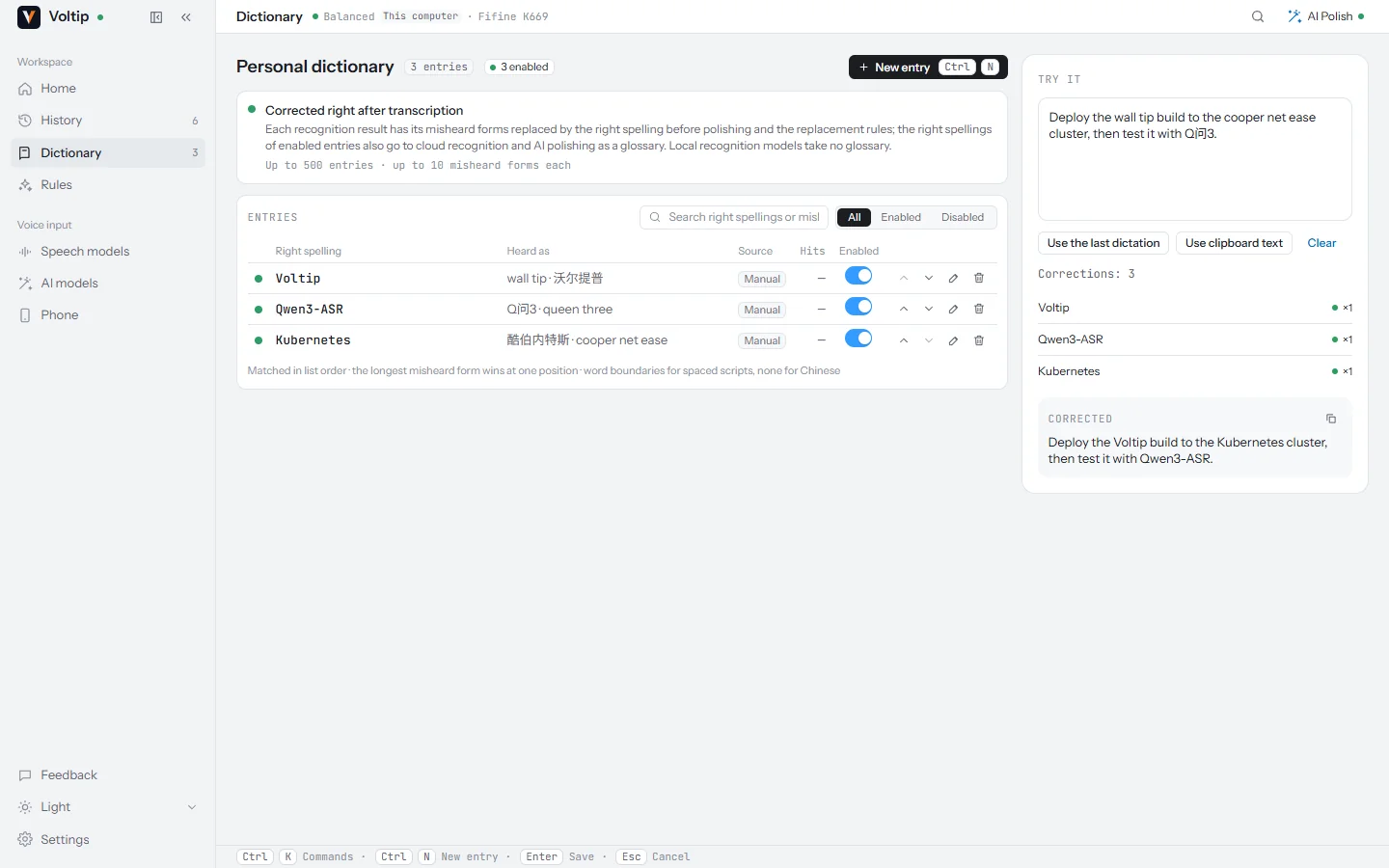
The dictionary holds up to 500 entries. Their order is their priority when the glossary has to be shortened.
Replacement rules
The Rules page rewrites the final text, after AI polish, in the order of the list. Each rule has:
- a name;
- a literal pattern or a regular expression;
- the replacement, which may be empty to delete the match;
- whether letter case must match.
Regular expressions use Rust syntax: groups can be referred to as $1, but look-around and back-references are not available. A rule that fails to compile is rejected when you save it.
Rules can be imported from and exported to a TOML file, for example:
version = 1

[[rule]]
name = "git push"
kind = "literal"
pattern = "give it push"
replacement = "git push"

[[rule]]
name = "PR number"
kind = "regex"
pattern = '\bpr (\d+)'
replacement = "PR #$1"
case_sensitive = false
Importing either replaces the list or merges into it, matching rules by name. The rules list holds up to 200 rules. Test run passes a sample text through the dictionary and every enabled rule, without inserting anything.
The rules list points out three problems under the rule concerned: another rule finds the same text, so only the one higher in the list gets hits; two rules make opposite replacements, so text can be changed back; a rule turns the right spelling of a dictionary entry back into one of its heard-as forms, undoing the correction.
Correct from the history
Open an entry in History and switch to the Original view: it shows the text as the recogniser wrote it, which is where misheard words are.
- Words AI polish already corrected have a dotted blue underline; hovering shows the polished spelling, for example "Polished as “Voltip”". Selecting one opens a prefilled dictionary card. Changes the dictionary and the rules made are not included; if an entry or rule used on the record was deleted or changed later, Voltip can no longer tell which words AI polish changed, and the record shows no such underline.
- Words that are already the heard-as form of an entry have a solid green underline.
- Select any other misheard word and a toolbar appears above it: Add to dictionary (D) or New rule (R). Double-click selects a word. When the selection is longer than 64 characters or spans lines, Add to dictionary is unavailable and says why.
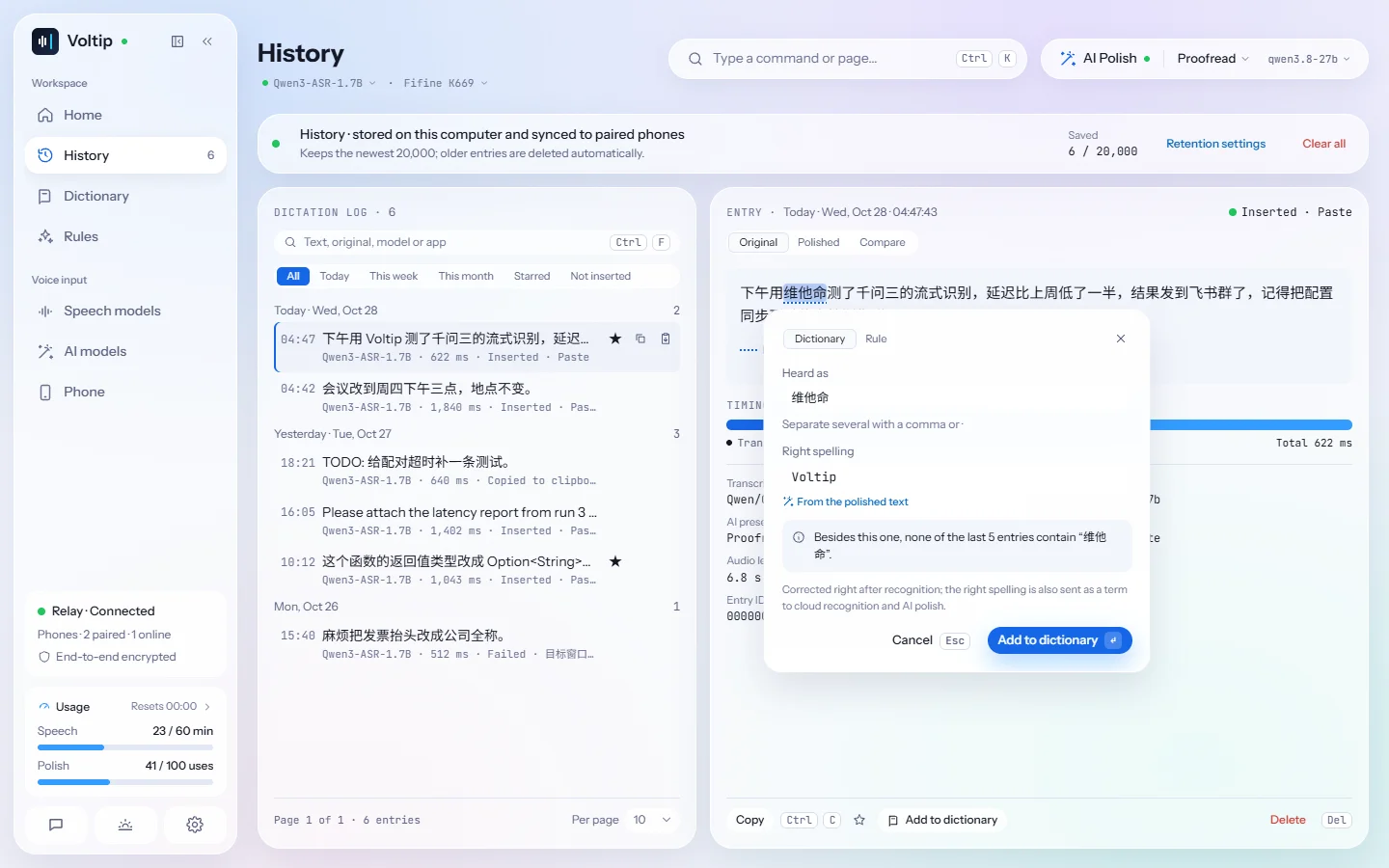
The card opens under the selection, without leaving the page:
- Heard as is the selected text; Right spelling is prefilled from the polished text where possible, marked From the polished text, so Enter saves it.
- The card tells you what the change would affect, for example "Besides this one, 3 of the last 499 entries contain “维他命”"; Show lists a few of them. When some entries kept the word in their final text, the card warns that it may be correct there; it also warns about one-character forms.
- When the right spelling is already an entry, the card merges the heard-as form into it and the button reads Add to “Voltip”. When the form belongs to another entry, the card says so and cannot save.
- The top of the card switches to Rule: find and replace side by side, with a preview of the rule on this entry's final text.
In the Compare view, selecting a pair of changes AI polish made first asks which spelling is right: the polished one adds the original form to the dictionary; the original one (AI polish changed it wrongly) adds it as the right spelling, so AI polish keeps it from then on.
After saving, the bottom of the window shows "Added to the dictionary · Voltip"; Undo or Ctrl Z within 5 seconds takes it back. Saved history entries do not change; the dictionary and the rules apply to later dictations.
On the phone, choose Fix recognition in an entry: the original text shows word by word; tap a word to select it, tap another to extend the selection, then choose Add to dictionary or New rule at the bottom.
To let AI tools such as Claude Code or Codex analyse the history with your projects in mind and suggest entries, see AI tools.
Suggestions
Suggestions, at the top of the Dictionary page, lists the spellings AI polish corrected in your recent history: what was recognised, what it was polished to, how many times and when last, the most frequent first. Spellings the dictionary already corrects and pairs you ignored are left out. Voltip compares the recognised text with the polished text character by character; no AI is used and nothing is sent anywhere.
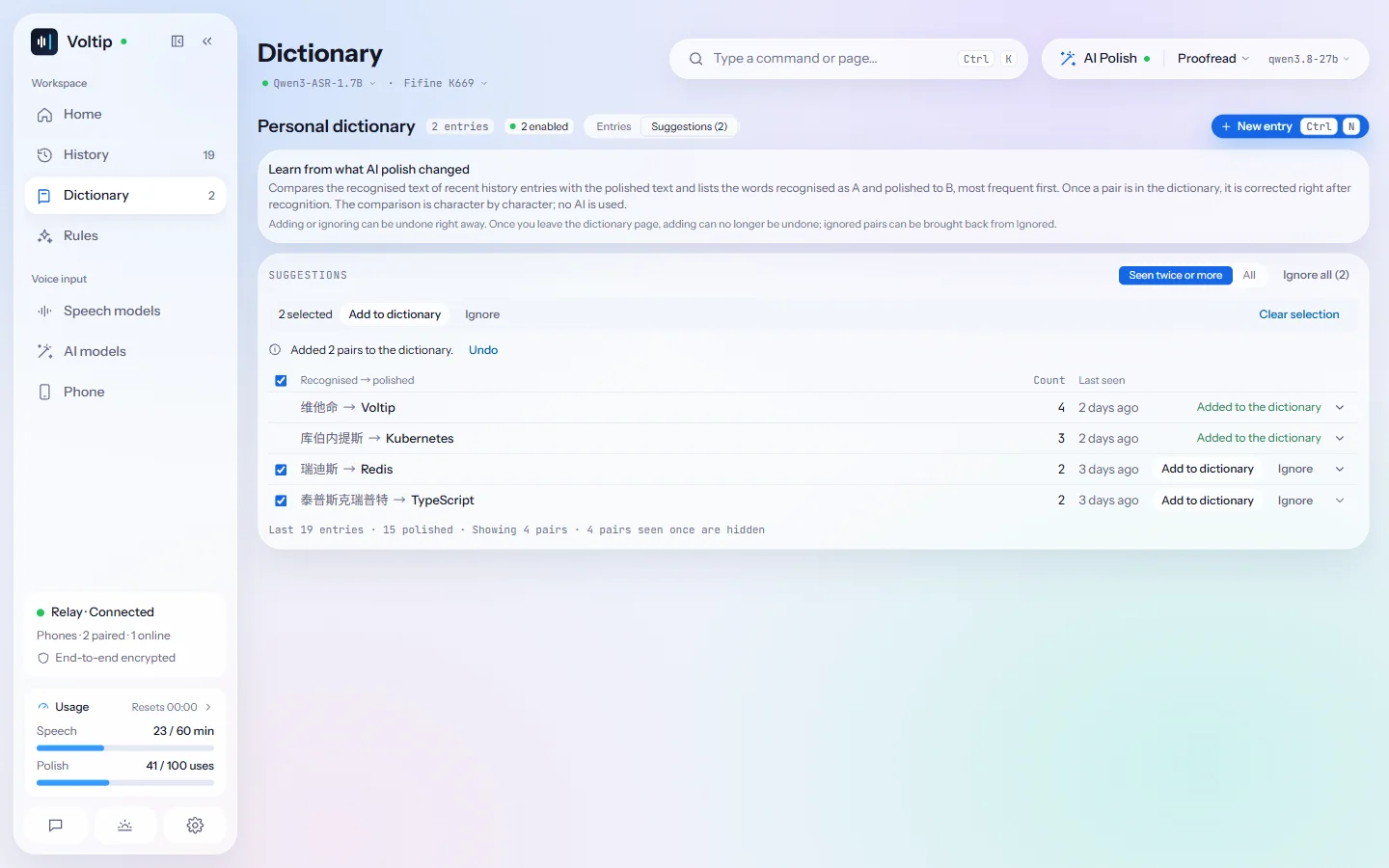
- By default the list shows the pairs seen twice or more; choose All above the list to include the ones seen once. The number after Suggestions counts the pairs left to decide in the current view, and the line under the list says how many pairs are shown and how many seen once are hidden.
- Add to dictionary adds the recognised spelling as a heard-as form: to the entry that already has the right spelling, or to a new entry. When a replacement rule would change the right spelling, or the spelling belongs to another entry, Voltip says why and saves nothing.
- Ignore keeps the pair off the list and moves it to Ignored below.
- Check several rows, or Select all in the header, to add them all to the dictionary or ignore them at once. Pairs with the same right spelling go into one entry; when a pair cannot be added, the reason is under its row and the others are added.
- Ignore all ignores every pair the list shows, and the button says how many.
- After adding or ignoring, the row stays where it was, and Undo takes it back; when several pairs were handled at once, the result is shown above the list and its Undo takes back the whole batch. Once you leave the dictionary page, adding can no longer be undone; an ignored pair can be brought back from Ignored.
- Expand a row to see the recognised text it appeared in, and how many of your recent entries adding it would change. Voltip warns when the spelling is a single character, which can change other words by mistake.
- Ignored (n) lists the pairs you ignored, the most recent first, with when you ignored each. Stop ignoring puts a pair back among the suggestions. The list stays after you leave the page or restart Voltip.
Suggestions come from the history: while history is off, the view only says that history needs to be on, and dictations without AI polish and imported audio or video files are not compared. Chinese is compared character by character: when 非书 was polished to 飞书, the pair listed is 非 → 飞. Suggestions are available on the computer only.
Simplified and Traditional Chinese
Under Chinese script on the Speech models page's Recognition tab, choose Simplified (default), Traditional or As recognised. The script is converted right after recognition, so the dictionary matches the characters you chose.