
Cloud services
Instead of a local model, recognition and AI polish can use a service on the internet. Each has its own choice: recognition on the Speech models page, AI polish on the AI models page.
The built-in service
Release packages come with a built-in service, so dictation and AI polish work before you set anything up. It is run by the Voltip project and needs no key. Builds from source have no built-in service.
For AI polish the built-in service offers several models: Qwen3.8 27B (the default), GPT-OSS 120B and GPT-OSS 20B. Choose one in the built-in service's settings on the AI models page. They are also offered as fallback models (see When a model's quota runs out): each model has its own quota. When the model you chose is busy or its quota is used up, the built-in service polishes with another of these models, and the history shows which model polished the text.
With the built-in service, the overlay shows the words while you speak (live preview), with no live transcription model to download: the sentence you are saying is sent about every second, and the preview updates about every 2 seconds. The final text is still the transcript of the whole recording after you release the shortcut. The overlay's tag reads Preview · Built-in. With Provider's live text off under Speech models → Recognition → Live preview, the built-in service sends no preview requests; with Local model preview on and its model downloaded, the overlay then shows the local model's words.
The built-in service is shared by everyone who uses it. When it has too many requests, or the quota of every one of its models is used up, it may skip AI polish for a while: the dictation still inserts the recognised text, the overlay says it was not polished and why, the home page (on the phone, the talk screen) shows a notice, and the history's details say why too. For AI polish you can rely on, use a provider of your own, for example with a free Groq key, set up as described under Setting up a provider. The notice goes away once a dictation is polished again or another provider is in use; once closed, it stays away for a day.
When a connection to a recognition or polish service drops before the request is sent (for example tls handshake eof, which happens now and then on the network path from mainland China to the built-in service), Voltip tries again twice within about a second and a half. Only when every attempt fails does the dictation report the error, with the number of attempts at the end, for example (3 attempts). This applies to the built-in service and to your own providers.
Built-in usage
The built-in service counts each device's use by day. Every device can use 60 minutes of speech recognition and 100 AI polishes a day. The count starts again every day at 00:00 Beijing time, and the app shows the reset in this device's time zone, for example 01:00 in Tokyo.
- Speech recognition counts the length of the audio sent; a request that fails or is refused does not count, and the live preview of a recording is not counted twice.
- Each AI polish and each voice edit counts once; a retry on another built-in model is not counted again.
- Recordings a phone sends to a computer count toward that computer; recordings a phone recognises itself count toward the phone.
- For a while after this feature arrives, the built-in service only counts, without a limit, and the app shows only the amount used, for example Used today: 12 min. Once the limits apply, the app shows the amount used against the daily limit, for example 12 / 60 min used, from your next use of the built-in service or the usage check Voltip makes every 10 minutes; no update is needed.
On a computer, the Usage card in the sidebar shows both services and the time of the reset; click it to open the Usage page: the last 7 days, where today's use came from, and other providers' use this month as this computer recorded it (a dictation recognised while you speak counts the audio sent). The home page, under each model, and the built-in service's cards on the Speech models and AI models pages show today's use too. On a phone, the Talk page shows today's use while the phone recognises, and Settings › Usage has the details.
From 80 % of a limit, the home page (on a phone, the Talk page) says how much is left. Once a limit is used up:
- Speech recognition: switch to an on-device model or another provider. On a computer, recordings that were not recognised stay on the computer and can be recognised again on another model; on a phone, you can send recordings to a computer instead.
- AI polish: the text is inserted without polish; you can also switch to another provider.
- With fallback models turned on, a fallback model carries on.
Other providers and on-device models are not limited by it. Each device has a device number generated at random when it first uses the service, used only to count its usage; see Privacy. Versions 0.1.9 and earlier send no device number and are counted by IP address, so older versions sharing one internet connection share one allowance; after an update, usage is counted by device.
Providers
| Provider | Recognition | AI polish | Key |
|---|---|---|---|
| Built-in service | Yes | Yes | Not needed |
| This computer | Yes, with a local model | — | Not needed |
| OpenAI | Yes | Yes | Required |
| Groq | Yes | Yes | Required |
| Google AI Studio | — | Yes, Gemini models | Required |
| SiliconFlow | Yes | Yes | Required |
| Alibaba Cloud Model Studio | Yes, realtime models included | Yes | Required |
| Volcengine Doubao Speech | Yes, while you speak | — | Required: an API key, or an App ID and Access Token |
| Tencent Cloud Speech Recognition | Yes, while you speak | — | Required: AppId, SecretId and SecretKey |
| iFlytek Dictation | Yes, while you speak | — | Required: APPID, APIKey and APISecret |
| iFlytek Realtime Transcription | Yes, while you speak | — | Required: APPID and APIKey |
| Baidu AI Cloud Speech | Yes, while you speak | — | Required: AppID and API Key |
| StepFun | Yes, realtime model included, on its China or international site | — | Required |
| DeepSeek | — | Yes | Required |
| Kimi | — | Yes, on its China or international site | Required |
| Zhipu GLM | Yes, glm-asr-2512 | Yes, on its China or international site (Z.ai) | Required |
| Volcengine Ark | — | Yes, Doubao and other models | Required |
| Tencent Hunyuan | — | Yes, through Tencent Cloud TokenHub | Required |
| Xiaomi MiMo | Yes, mimo-v2.5-asr | Yes | Required |
| OpenRouter | — | Yes, many vendors' models | Required |
| Ollama, on this computer | — | Yes | Not needed |
| Custom, any OpenAI-compatible endpoint | Yes | Yes | Optional; the endpoint address is required |
A provider that offers both services uses one key for both. The provider cards show each provider's logo. On the Speech models page a card also names what the provider can do: Realtime means it has a model that recognises while you speak, and Hot words means the terms of your dictionary go with its requests; on the computer the built-in service also shows Live preview.
What each provider needs to be activated and where its credentials are is in Provider setup.
While you speak, the overlay shows the words with a tag naming the provider, such as Preview · Doubao Speech, and release only waits for the last sentence. With Provider's live text off under Live preview, the model still recognises while you speak, with the same result and speed, and the overlay only stops showing its words; with Local model preview on and its model downloaded, it shows the local model's words instead. If the connection drops, the service fails, or it returns no text at all, Voltip recognises the whole recording instead, the dictation still goes through, and the entry's details in the history say why; see The overlay shows no text while I speak. Whether the correct spellings in your dictionary go to each recognition service is in the dictionary page's table.
Recognition can also run on a GPU server of your own, used as the custom endpoint; see Self-hosted recognition.
Setting up a provider
- On the Speech models or AI models page, select the provider's card. Its settings open in a panel on the right, or from the bottom on the phone. How to set up in the settings says what the provider needs to be activated and where its credentials are, with links to activate the service and to get a key; Full guide opens its section of Provider setup.
- Choose a model, and for a custom endpoint enter its address. Each provider suggests up to three models, the first being the default, so a provider works as soon as its key is entered. Once a key is saved, the model list shows every model the provider offers after Other model… (the From the provider group, with their number), updated each time the list opens, so there is no need to type a model ID. A speech recognition model that recognises while you speak is marked realtime in the list. Under the model, the panel says how the selected model recognises, while you speak or the whole recording after you let go, and whether the dictionary's terms go to it as hot words, as a prompt, or not at all.
- Enter your key. A provider whose credential has several parts (Tencent Cloud's AppId, SecretId and SecretKey, for example) takes them one field each; a saved field left blank stays as it is. Test connection checks the address and the key and shows how many models the provider offers, the same number as in the model list. For a provider that publishes no model list (Volcengine Doubao Speech, Tencent Cloud, iFlytek and Baidu), the model list holds the suggested models and Other model… takes any other model ID; Test connection checks the credential only and says Credentials accepted. When it fails, the result ends with what the service answered, for example The key was refused: Incorrect API key provided. The Speech models page lists speech recognition models only, and the AI models page leaves out speech, image and embedding models.
- Choose Set as current to save what you entered and switch to the provider. Set as current on a card switches to the provider without opening its settings.
Many of the models used for AI polish think before they answer. So that polish finishes quickly, Voltip turns thinking off in its requests; models that cannot stop thinking, such as Kimi K3 and GLM-5.3, are asked for a low reasoning effort.
When a provider refuses a request (a wrong key, a used-up quota, an unknown model, a busy service and so on), the overlay, the home page and the history show what the service answered, for example Speech recognition failed: the key was refused: Incorrect API key provided. Keys, tokens and account ids in it are masked; a long answer shows its beginning, and the history's details show all of it.
Test recognition
Once a provider is set up, you can check it on a real recording: Test with the newest recording, under the recognition services on the Speech models page, recognises the newest recording in the recording cache once, with the settings you saved. The result is shown there only, never pasted or copied, and it does not go into the dictation history: the text, the recognition service and model, how long recognition took, whether the glossary was sent, the AI polish result and the total time. When recognition fails, the service's answer is shown.
- It needs Keep dictation history and Keep recordings on this computer under Privacy and history, and a dictation recording of two minutes at most in the recording cache. Otherwise the button is unavailable and says why.
- A test sends the same requests to the recognition service (and to AI polish, when it is on) as a dictation. With Type as you speak a dictation is not polished, and neither is a test: the result says No polish in “Type as you speak” mode. With the built-in service it counts towards the daily usage, as Recognized again.
- One test runs at a time.
China and international sites
Kimi, Zhipu GLM and StepFun each have a China site and an international site (Zhipu's international site is Z.ai), with separate accounts and keys. Under Site in the provider's settings, choose the site you signed up on; the endpoint address changes with it, and Get a key opens the key page of that site. The China site is the default.
When a model's quota runs out
Recognition and AI polish can each list fallback models: when the selected model's quota is used up, Voltip moves on to the next model in the list, and the dictation still goes through. Each of Model Studio's models has its own free quota, so you can list several models with a free quota one after another.
- On the Speech models or AI models page, turn on When a model's quota runs out.
- Below it, choose a provider and a model, and choose Add on the same row. A provider can be added with several of its models, up to 8 in all; each uses the address and the key set on the provider's card.
- Use the move up and move down buttons to change the order, and Remove beside a model to take it off the list. The first row is the selected model.
- By default Voltip moves on only when the provider answers that the quota is used up. Other errors, such as a network failure, a wrong key or too many requests, are reported as before and do not switch models; on the computer you can also turn on Also switch when a service fails.
- A model whose quota is used up is skipped for 24 hours and then tried again; the list shows when. Check again starts over with the selected model at once, and so does restarting Voltip or changing the provider's key.
- When every model's quota is used up, dictation says the model's quota is used up. Text that was already inserted stays: in Type as you speak, the sentences already inserted are kept, and the recognised parts of a long recording are inserted as usual.
- Fallback models are not used while the selected provider cannot be used (for example, its key is missing). While the selected model is a local model, only local models in the list take over, and only with Also switch when a service fails on; see When a local model fails.
- When the selected model is a realtime model, a realtime fallback model also recognises while you speak, and the overlay's tag names the provider it switched to; a whole-recording fallback model works like any other model that recognises whole recordings: with Local model preview on and its model downloaded, the overlay shows the local model's words; otherwise Live preview shows as unavailable and the output runs as All at once.
- The history shows the model that actually recognised and polished the text; on the computer an entry also names the provider, and whether a fallback model did the work because the selected model's quota was used up or because it failed. The Now line (above the providers on the computer, under the provider cards on the phone) notes when a fallback model stands in.
- Model Studio needs Free Quota Only turned on for these models in its console: then it refuses requests once a quota is used up and Voltip moves on to the next model; without it, Model Studio starts charging instead. Voltip cannot read the remaining quota and does not change the console's settings; View quota below the list opens the console's free quota page.
Also switch when a service fails
On the computer, the fallback list on the Speech models and AI models pages also has Also switch when a service fails. It is off by default and needs When a model's quota runs out turned on. With it on, Voltip also moves on to the next model in the list when:
- A request times out, the network fails, or the provider answers with a server error, says it is busy or reports too many requests.
- During local recognition, the graphics card, the memory or the model fails.
An invalid key or a malformed request does not switch models and is reported as before.
- A recognition or polish stops after 3 models fail; a model whose quota is used up does not count. After about 150 seconds for recognition or about 60 seconds for polish, Voltip stops trying and reports a timeout.
- A model that failed is skipped for about a minute (or as long as the provider asked), and the list shows Failed, skipped for now with the time it is tried again. Check again starts over with the selected model at once.
- A realtime model that fails while you speak is not replaced by another model's live recognition, and the text already inserted stays; after you release the shortcut, the rest is recognised by a fallback model. Each part of a long recording switches on its own.
- The speech recognition list can include downloaded local models. While the selected model is a local model, a failure only moves on to local models in the list, and no recording is uploaded.
- Importing audio or video does not use fallback models.
- The phone has no such switch: on the phone, fallback models still take over only when a quota runs out.
Switching models
The Recognition and polish card on the home page shows the speech model and the AI polish model in use, and whether they are ready; on the other pages the speech model is under the page title and the polish model next to the AI Polish switch. Click either name to switch without opening its page:
- The speech model menu lists the built-in service, each provider you have set up, and the local models you have downloaded.
- The AI polish model menu, to the right of the AI Polish switch, lists the models of the built-in service and of each provider you have set up.
Providers that are not set up do not appear in these menus. Manage speech models… and Manage AI models… at the end of the menus open the pages where you set them up.
Keys
- Keys are stored in the system keychain: Windows Credential Manager, the macOS keychain, or the Secret Service on Linux. They are never shown again after you save them.
- Each key is sent only to the provider it belongs to. When you switch providers or change a custom address, the old key does not follow.
- On Linux, Voltip needs a running Secret Service, such as GNOME Keyring or KWallet. It does not fall back to storing keys in a file.
Network proxy
Speech recognition, AI polish, model downloads, update checks and downloads, feedback, and the connection to your phone all reach the network through the proxy set under Settings → Network. On the phone, the same setting is under Settings → General → Network.
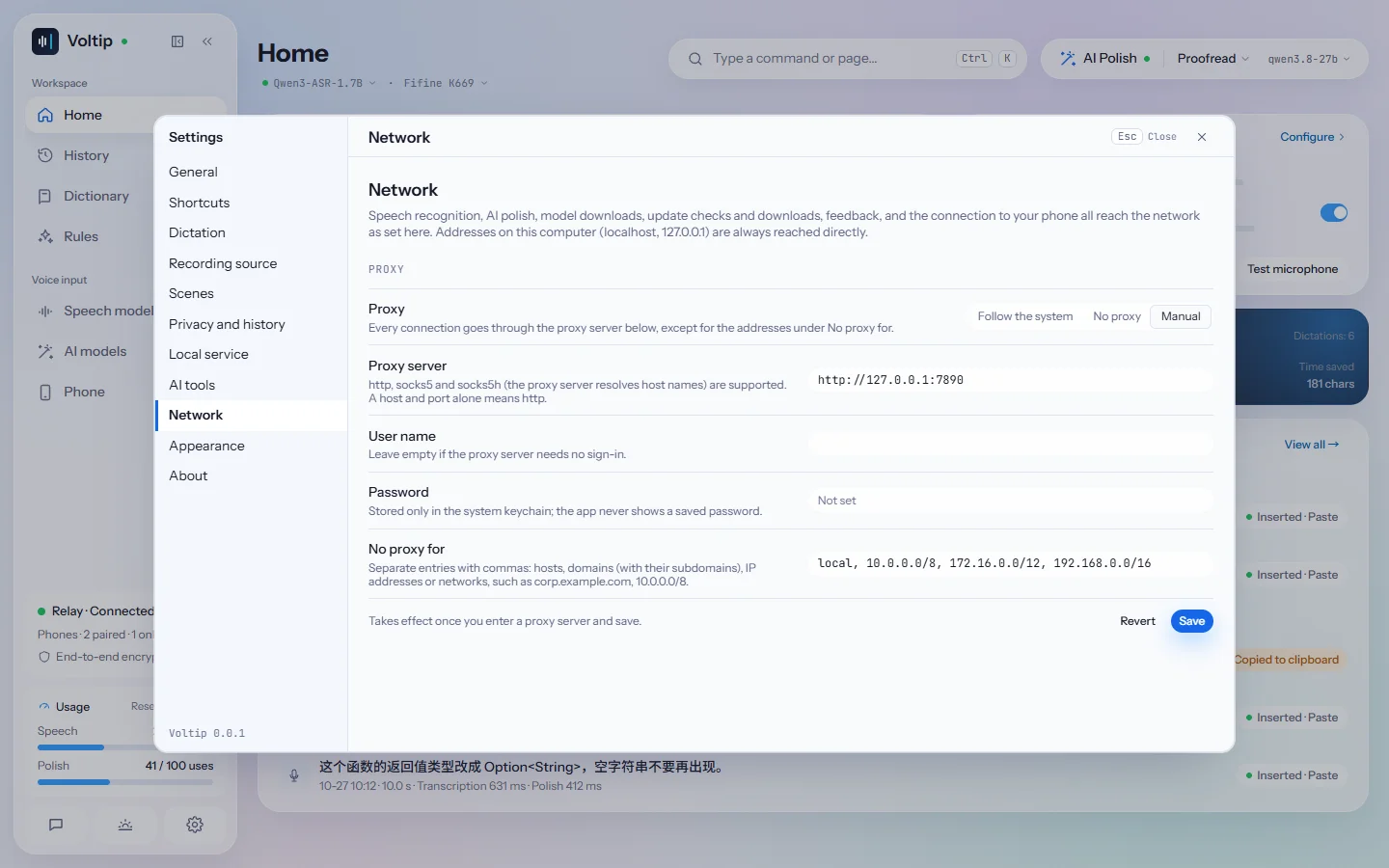
- Follow the system (the default) uses the system's proxy settings. On a computer, Voltip reads the
HTTPS_PROXY,HTTP_PROXY,ALL_PROXYandNO_PROXYenvironment variables first, then macOS's network settings or Windows' Internet Options; on Linux it reads the environment variables only. On the phone, it uses the proxy of the current network (Wi-Fi). The settings page shows the system's current proxy; after you change the system's settings, Read again reads them at once. - No proxy connects directly.
- Manual uses the proxy server you enter, such as
http://127.0.0.1:7890orsocks5h://127.0.0.1:1080.http,socks5andsocks5h(the proxy server resolves host names) are supported; a host and port alone meanshttp, and the port is required. If the proxy needs a sign-in, enter the user name and password; the password is stored only in the system keychain and is never shown after you save it. No proxy for takes a comma-separated list of hosts, domains (with their subdomains), IP addresses or networks, such ascorp.example.com, 10.0.0.0/8; for a first manual proxy it starts with the local network (local, 10.0.0.0/8, 172.16.0.0/12, 192.168.0.0/16), so a model service on another computer of your network is not sent to the proxy. Change it as you need.
Addresses on this device (localhost, 127.0.0.1), such as Ollama running locally and the local service, are always reached directly. After a change, every new connection follows the new setting.
Voltip does not support PAC files, automatic proxy detection (WPAD) or https:// proxies, and it does not read the proxy settings of Linux desktop environments such as GNOME or KDE; enter the proxy under Manual, or set the environment variables above. Pages opened in the browser, such as a provider's console or the phone's installer download, use the browser's own proxy settings.
What is sent
- Recognition: the recording, the model name and your key. If your dictionary has entries, their correct spellings go to the recognition services that take a glossary. With a model that recognises while you speak, the recording is sent while you speak.
- AI polish: the recognised text, never audio, together with the app's name unless you turn that off. See Privacy for the details.
- Fallback models: with When a model's quota runs out turned on, the recording or the text goes to the provider of the next model in the list once the selected model's quota is used up (and, with Also switch when a service fails on the computer, once the service fails). A local model in the list works on this computer and sends nothing.
- Model lists: when a provider's settings or a model list opens, Voltip asks that provider for its models with the saved key; no recording or text goes with it.