
History
Every dictation, voice edit and text sent from a paired phone, every copy a phone uploads of what it transcribed on its own, and every audio or video file imported on the computer, is listed on the History page. The history is stored on your computer; paired phones can read it, see The computer's history and settings.
The latest results are also listed on the home page: four, or more when the window is taller, up to 30. While there are recordings not recognised, the newest three are listed above the latest results, to recognise again or clear from there, see Recognise or polish again.
What an entry shows
- The text that was inserted and the text that was recognised, with a view of what changed between them.
- Which dictionary corrections and replacement rules applied, and the app and scene the dictation was for.
- The AI preset that AI polish used, when it ran.
- The models used and how long each step took; when a local model was moved to the processor because the graphics card failed, Recognised on says so. On the computer the entry also names the provider of the recognition and of the polish; when a fallback model did the work, it says whether the selected model's quota was used up or the model failed (see When a model's quota runs out).
- Where the text went: pasted at the cursor, or left on the clipboard, with the reason. A paste that Voltip found did not arrive is marked Not written; when Voltip could not tell, the technical details say Not confirmed as written (see Checking that the text arrived).
From an entry you can:
- copy it, or paste it into the window you used before (see Where the text goes);
- star it, so that it is easy to find;
- select a misheard word in the original text and add it to the dictionary or create a rule, see Correct from the history;
- recognise it again while its recording is still kept, or polish it again when AI polish failed, see Recognise or polish again;
- delete it.
The search box finds text, apps, scenes, models and the names of imported files, and works together with the filters, which narrow the list to today, this week or this month, to starred entries, or to entries whose text was not inserted, pastes marked Not written included. After a search or a filter the list starts again at its first page, and the foot of the list shows how many entries were found.
On the computer the list is shown in pages. Choose 10, 20, 50, 100 or 200 entries per page at the foot of the list (10 at first; the page remembers your choice) and move between pages with the buttons beside it. A new dictation does not change the page you are on. The list and the details of the selected entry fill the window's height side by side, and each scrolls on its own when it holds more; another page starts at the top of the list. On a phone the list shows 100 entries at a time; scroll to the end, or tap Load more, to see the next ones.
Long recordings
An entry recorded for longer than 2 minutes or with more than 2,000 characters, and an imported audio or video file, has two more tools in its detail:
- Process with an AI preset: choose a preset and select Process. The text is processed in parts of up to 1,500 characters, cut at sentence ends; the progress is shown and you can cancel. The result is saved as a processed text beside the original, which stays as it is, and appears under Processed. With Key points, the points of all parts are summarised once more when they fit one request; with Chinese ⇄ English, you get a translation. The built-in AI service runs on a free quota, so long texts take a while.
- Export subtitles (SRT) and Export text (TXT): choose where to save the file. Subtitles follow the segments of the recording, with at most 20 Chinese or 42 Latin characters per line. The text export uses the processed text when there is one.
Import audio or video
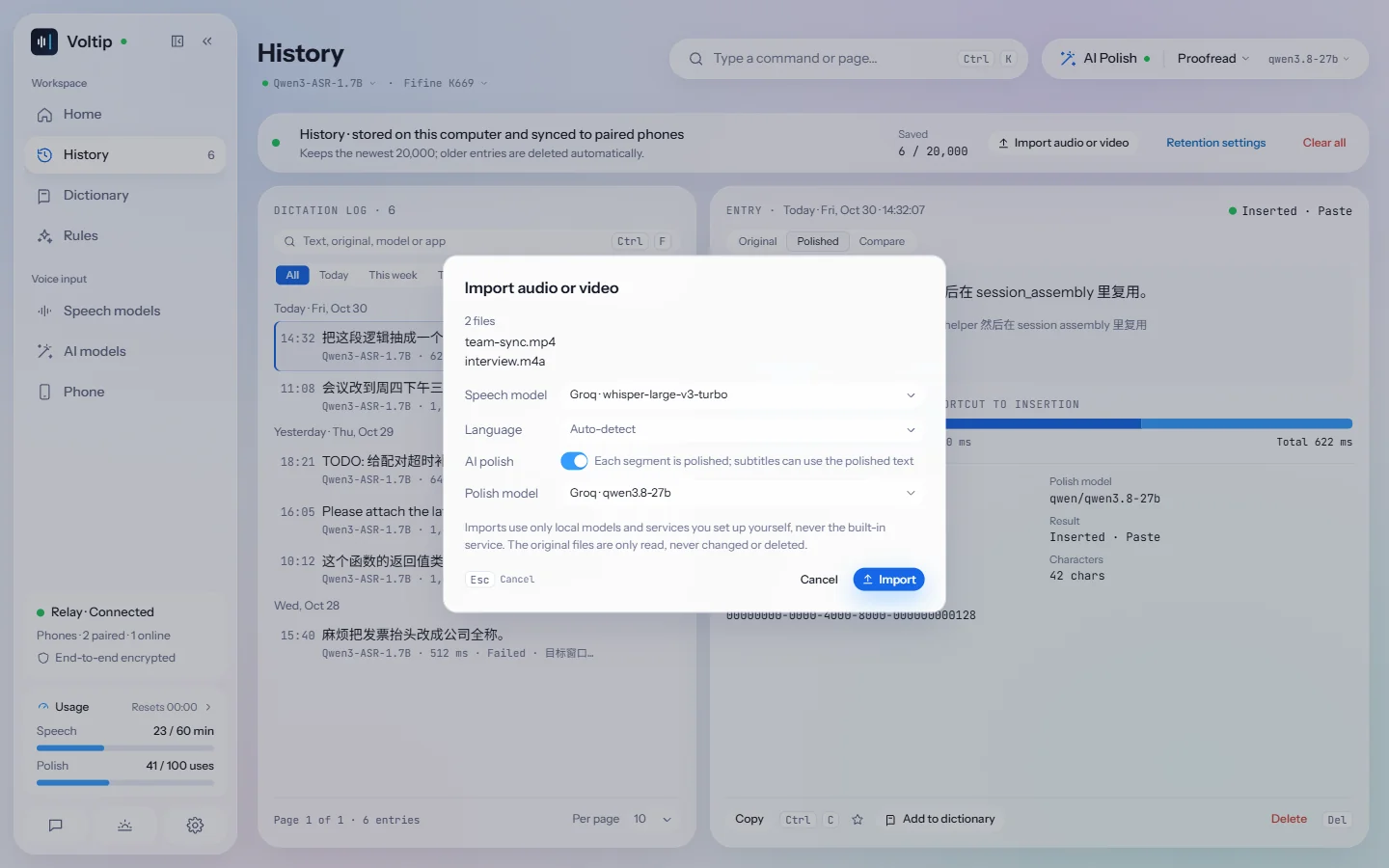
On the computer you can import audio and video files into the history, such as a meeting recording, a lecture video or an interview. Voltip recognises the sound in the file (of a video, its audio track only) and saves each file as one entry, which you can export as subtitles (SRT) and text (TXT). The original files are only read, never changed or deleted.
- On the History page, select Import audio or video and choose one or more files, or drop the files on the History page.
- In the dialog, choose the speech model and the language. For AI polish, turn on AI polish and choose the polish model.
- Select Import.
- Formats: WAV, MP3, AAC, M4A, FLAC, Ogg (Vorbis, Opus), MP4, MOV, MKV and WebM. Of a file with several audio tracks, the default track is recognised. AC-3, DTS and some other codecs are not supported; Voltip names the codec the file uses.
- Models: an import uses only a local model you have downloaded, a cloud provider with your own API key, or a service you set up yourself, with or without a key: Ollama, or a custom endpoint such as a vLLM server on your network. It never uses the built-in service, so it does not count toward the built-in service's usage. The models you choose are used for that import only; the settings stay as they are. When there is no model to use, the dialog offers Manage speech models or Manage AI models.
- Recognition and polish: the file is recognised in segments of 3 to 15 seconds cut at pauses, and a segment that fails is tried once more. With AI polish on, each segment is polished once the file is recognised; a segment whose polish fails keeps its recognised text.
- The import list: files are imported one after another, and the top of the History page lists each one with where it is and its progress. A file waiting or being imported can be cancelled with Cancel, and then nothing is saved; a file that failed can be retried with Retry, which goes on from the first unfinished segment when recognition stopped half-way; a finished file has View entry. Closing Voltip clears the import list; the original files are not affected.
- Dictation comes first: you can dictate while files are imported. The import pauses during the dictation and goes on after it.
- An imported entry carries an Imported mark and the file's name, and does not count in the statistics on the home page. Importing needs the history turned on.
When you export an imported entry, the file name offered is the original file's. When its segments were polished, Subtitle text chooses Polished (the default) or Recognised for the subtitles. Both have exactly the same times, in step with the original file.
Recognise or polish again
When recognition or AI polish fails, there is no need to record again. By default Voltip keeps the recordings of your latest 20 dictations on this computer, including those recorded on a phone used as a microphone; the recordings of voice edits are not kept. A recording longer than 2 minutes, such as a meeting, is saved compressed while you record, and kept when you cancel it as well. If Voltip closes unexpectedly during a recording, the next start recovers what was recorded, missing at most the last few seconds.
- Recordings not recognised: recordings whose recognition failed or that were cancelled, and those Voltip closed on while recording or processing them, are listed under Recordings not recognised on the History page, with when and for how long they were recorded, the app they were recorded in and the reason; the newest three are also listed above the latest results on the home page, with View all when there are more. Select Recognise again and Voltip recognises the recording again with the scene of the app it was recorded in, a recording longer than 2 minutes in segments as well; the text is saved as a new entry and copied to the clipboard, and it is not inserted into the current window. Select Delete recording for a recording you no longer need; Clear deletes all the recordings not recognised, after asking.
- Other models: Recognise again with, above the list, chooses the speech model (a model of a provider that is set up, or a local model you have downloaded) and the AI polish model the recordings are recognised again with, or No polish. The models you choose are used only for recognising again; the settings stay as they are, and with nothing chosen the current settings are used.
- Recognise again from an entry's details: while an entry's recording is still kept, its details show This dictation's recording is still kept on this computer and Recognise again, with the same choice of models. For example, when the result was not what you said, choose another speech model and recognise it again.
- Polish again: when the AI polish request fails, the dictation inserts the recognised text and the details say why. With an AI service set up, Polish again appears next to the reason: it polishes the text again with the preset of the entry's scene (the current preset when there is no scene) and saves the result as a processed text, under Processed; the original stays as it is.
The overlay says so as well: when no text was recognised and the recording was kept, it shows Recording kept to try again; when the recording is kept after you cancel, it shows Cancelled · recording kept.
How much is kept
Under Settings → Privacy and history:
- Keep the latest sets how many entries are kept: 500, 2,000, 5,000, 10,000 or 20,000. A new installation keeps 20,000, which is also the maximum. Older entries are removed.
- Updating does not change this setting: if it was 500, it stays 500 until you choose a larger number.
- History can be turned off. Nothing new is recorded; what is already there stays until you clear it.
- Clear history deletes all entries and the kept recordings, after a confirmation.
Recording cache, on the same page, sets how many recordings are kept for recognising again:
- Keep recordings on this computer is on by default and needs Keep dictation history on as well. Turning it off deletes the kept recordings.
- Keep at most: 5, 10, 20, 50, 100 or 200 recordings, 20 by default. Use at most: 50 MB to 10 GB, 200 MB by default. Past either limit, the oldest recordings are deleted. A recording of up to 2 minutes takes about 1.9 MB a minute; a longer one is compressed to about 10 MB an hour.
- Delete recordings deletes every kept recording after a confirmation; the text in the history stays.
- Deleting an entry deletes its recording too. Recordings are not synced to phones and not included in backups.
Statistics
The home page adds up the dictations in the history for today, this week, this month and in total:
- Characters transcribed: the characters the speech model recognised.
- Characters corrected: how many characters differ between the recognised text and the text inserted, spaces not counted.
- Speaking time and Time saved.
Time saved is speaking time × 1.9. The factor comes from Ruan et al., 2016 (arXiv:1608.07323): in their experiments, speaking was about 2.9 times as fast as typing on a phone, in English (153 against 52 words per minute) and in Chinese (123 against 43 characters per minute). Typing the same text takes about 2.9 times as long as saying it, which saves 1.9 times the speaking time. Basis, next to Time saved on the home page, shows the same explanation.
Only dictations kept in the history count. Voice edits, text or clipboard content sent from the phone, and imported audio or video files do not; a recording made on the phone and recognised on this computer does, and so does a copy a phone uploads of what it transcribed on its own.
Backup and moving to another computer
Under Settings → Privacy and history, Backup and migration exports what is on this computer into one backup file, to keep as a backup or to move to another computer.
A backup contains:
- the whole history. The statistics on the home page, such as the time saved and the characters, are worked out from it, so they come back with it;
- the dictionary, the rules, the scenes (with the settings of the built-in scenes) and your own AI presets.
A backup does not contain settings, API keys, paired devices or local models. On the new computer, choose the speech model and the AI model again, enter your keys and pair your phone.
Export a backup
- Open Settings → Privacy and history and select Export… under Backup and migration.
- Choose where to save the file. Its name is Voltip backup and the date, with the extension
.voltip-backup.
The backup file is not encrypted and its dictations can be read as they are: keep it as safe as the history itself.
Import a backup
- On the other computer, install Voltip, open Settings → Privacy and history, select Import… under Backup and migration and choose the backup file.
- Voltip shows the device the backup comes from, when it was made and how many items each part holds; nothing has changed yet. Choose the parts to import and how:
- Merge keeps what is on this computer and adds what is new in the backup. Entries already here, dictionary entries with the same spelling, and rules, scenes and presets with a name already in use are skipped, as is anything past a limit (500 dictionary entries, 200 rules, 50 scenes, 30 AI presets). Built-in scenes keep this computer's settings.
- Replace deletes what this computer has in the chosen parts and puts the backup's content in its place. Before replacing, Voltip makes an automatic backup of what is here; see Automatic backups.
- Select Import (Replace when replacing). Voltip then lists, part by part, how many items it imported, and how many it skipped and why.
The history keeps as many entries as Keep the latest allows; the older ones beyond that are not kept. To import the whole history, set Keep the latest high enough first.
Between operating systems the same app has a different identifier, so choose the apps of your own scenes again; the default apps of the built-in scenes switch to the new system's.
When the chosen file is not a Voltip backup, is damaged, was made by a newer version of Voltip or is larger than 512 MB, Voltip says why and imports nothing.
Automatic backups
Voltip also backs up the same content on its own, at three moments:
- Every week: one backup every 7 days. To stop it, turn off Back up every week under Settings → Privacy and history → Automatic backups.
- Before an update installs: when this backup cannot be written, the update goes ahead anyway, and the home page says so after the next start.
- Before an import replaces data: when this backup cannot be written, nothing is replaced. An import cannot replace data while a dictation is running; try again when it has ended.
The backups before an update and before a replacing import cannot be turned off. The first update to a version with automatic backups makes no backup before it installs, because the version being replaced does not have them; with weekly backups on, the new version makes one about a minute after it starts.
Automatic backups are saved in the backups folder of Voltip's data folder (where that is). To save them elsewhere, select Change… under Automatic backup location; Voltip first checks that it can write to the chosen folder. Backups already in the previous folder stay where they are. Open folder shows the backup files, and Restore default location goes back to the backups folder.
In a synced folder, the backups are kept even if this computer breaks, is lost or is reinstalled. Voltip does not sync data between computers: to move to another computer, import a backup there (see Backup and moving to another computer). Several computers can use the same folder. The name of each automatic backup ends with the tag of the computer that made it, and each computer manages only its own: it keeps its own latest 5 and leaves the other computers' backups as they are. This computer's tag is shown under Automatic backup location.
Each computer keeps only its own latest 5 automatic backups and deletes its older ones. Backups you export yourself are never deleted, even in the same folder. Latest automatic backup shows when this computer's newest one was made and why.
An automatic backup is the same kind of file as an exported one. To restore from it, select Import… and choose it; the file dialog opens in the automatic backup folder. After a replacing import, Voltip shows where the backup made before it was saved. Backup files are not encrypted: in a synced folder, they are uploaded with it.