
AI tools
AI tools lets AI tools on this computer, such as Claude Code or Codex, read Voltip's history, dictionary and rules over MCP, find the misrecognitions that keep coming back, and add dictionary entries and rules. These tools know your projects and your terms, so they judge the right spelling better than a general rule would. You decide in Settings what they may read and whether they may change anything, and every change can be undone.
This feature is on the desktop app only.
Turn it on
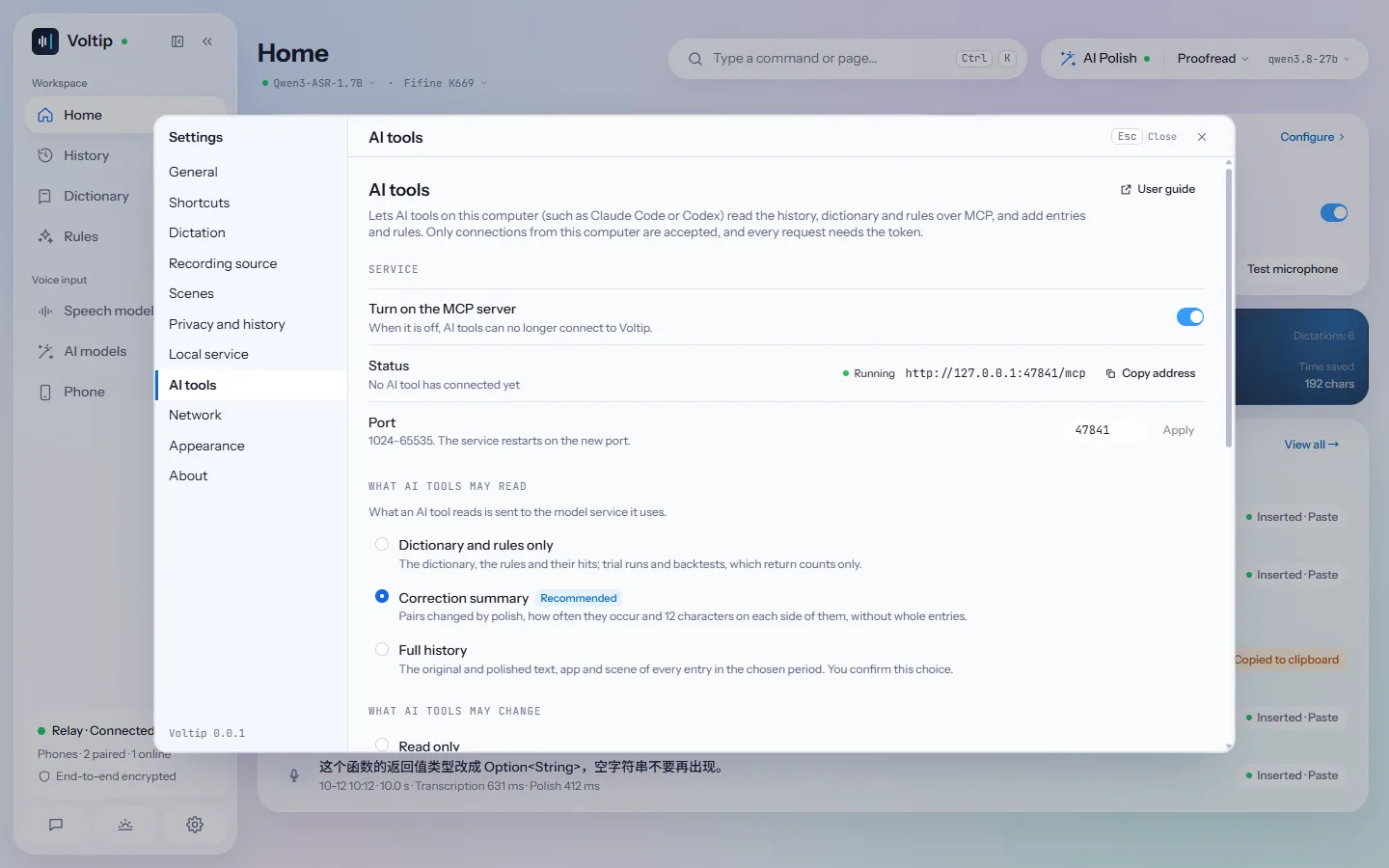
Open Settings → AI tools:
- Turn on the MCP server starts the server. Status shows Running, the server address, for example
http://127.0.0.1:47841/mcp, and the tools that connected recently. - Port changes the port (1024–65535); the server restarts on the new port. When the port is taken, the status shows Could not start and the reason.
- The server accepts connections from this computer only, and every request needs the access token. It stops when you turn it off or quit Voltip.
Connect Claude Code or Codex
Under Connect, choose Copy command and run it in a terminal. The copied command already contains the access token; the window never shows the token.
Claude Code:
bashclaude mcp add --transport http voltip http://127.0.0.1:47841/mcp \ --header "Authorization: Bearer <token>"Codex: set the environment variable, then add the server:
bashexport VOLTIP_MCP_TOKEN=<token> codex mcp add voltip --url http://127.0.0.1:47841/mcp --bearer-token-env-var VOLTIP_MCP_TOKENOn Windows, the copied command sets the variable the PowerShell way:
$env:VOLTIP_MCP_TOKEN = "<token>".
Other MCP clients that support Streamable HTTP use the same address with the header Authorization: Bearer <token>.
Once connected, ask the tool directly, for example "Check which words Voltip misheard in the last month, suggest dictionary entries using this project's terms, and add them after I confirm." The tool can also use Voltip's prompt review_misrecognitions: it sums up the replacements, backtests each one and lists its suggestions for you to confirm before writing anything.
What AI tools may read
| Option | AI tools can read |
|---|---|
| Dictionary and rules only | The dictionary, the rules and how often they fired; they can try a text, and a backtest returns counts only |
| Correction summary (recommended, the default) | All of the above, plus the words AI polish replaced, how often, and 12 characters on each side of each hit, without whole entries |
| Full history | All of the above, plus the original and polished text, app and scene of every entry in the chosen period |
When you choose Full history, Voltip first explains the risk and asks for the period: the last 7 days, the last 30 days (the default) or all entries. Afterwards the settings page keeps showing a line such as "AI tools may read the full history of the last 30 days."; choosing Withdraw or another option takes effect at once.
Whatever an AI tool reads is sent to the model service the tool uses and may stay in its conversation history. The history may contain personal information, account details or other sensitive content, so allow Full history only when you need it.
When a tool asks for more than you allowed, it receives an explanation such as "Voltip currently shares the correction summary only; whole entries must be allowed in Voltip settings", which it can pass on to you.
What AI tools may change
| Option | AI tools can |
|---|---|
| Read only | Change nothing |
| Edit the dictionary; new rules need approval (recommended, the default) | Add and change dictionary entries, including turning them off; create rules, which do nothing until you approve them |
| Also turn rules on directly | All of the above, plus create rules that apply at once and change any rule |
Replacement rules rewrite the text inserted into any app from then on, so by default you approve them: a rule an external tool created is marked Needs approval on the Rules page and applies only after you choose Enable; you can also delete it. Voltip asks again before you choose Also turn rules on directly.
AI tools cannot delete dictionary entries or rules.
Review and undo changes
- When an AI tool writes something, a notice appears at the bottom of the window, for example "Claude Code added 2 dictionary entries"; Show opens the dictionary, or the rules when it wrote a rule.
- Settings → AI tools → Recent activity lists every read and change: which tool, when, and what it read or changed, never the text itself. Changes can be undone there.
- The Dictionary page names the source, for example "External tool · Claude Code", and the External tools filter shows only those entries. The Rules page shows a notice about rules that need approval, and the Needs approval filter shows only those. Rules that need approval do not run in the Test run.
Tools
| Tool | What it does | Needs |
|---|---|---|
dictionary_list | Lists entries, heard-as forms, whether they are on, their source and hits | any read option |
rules_list | Lists rules, their kind, whether they are on or need approval, their source and hits | any read option |
vocabulary_preview | Runs a text through the dictionary and the rules, optionally with a draft rule | any read option |
vocabulary_backtest | Backtests a draft entry or rule: how many recent entries it would change, and how many of them may be correct as they are | any read option; snippets need the correction summary |
vocabulary_candidates | Sums up the words AI polish replaced and how often | correction summary |
history_search | Finds entries by text, time or app, up to 50 per page | full history |
history_get | Reads all the text of one entry | full history |
dictionary_add | Adds an entry; when the right spelling is already there, merges the heard-as forms into it | edit the dictionary |
dictionary_update | Changes an entry's spelling, heard-as forms or whether it is on | edit the dictionary |
rules_add | Creates a rule; by default it applies only after you approve it | edit the dictionary |
rules_update | Changes a rule; by default only the rules it created that still need approval | edit the dictionary |
Privacy and security
- The server is off by default and listens on
127.0.0.1only, so other computers cannot connect; requests from web pages are refused, and a web page cannot read the responses. - The access token is not the one of the local speech service, so a program that only uses speech recognition cannot read the history. Generate new replaces the token after you confirm, and the old one stops working at once.
- One request returns at most 50 entries and 256 KiB. Voltip's log records only the tool name, the client name, counts and timings, never the text.
- To use it from another computer, connect to this one through SSH port forwarding, for example
ssh -L 47841:127.0.0.1:47841 <this computer>.